![Kasper Logo-2.png]](https://knowledge.meetkasper.com/hs-fs/hubfs/Kasper%20Logo-2.png?height=25&name=Kasper%20Logo-2.png)
Overview
Mailbox Settings allow offices to create dedicated voicemail inboxes for different departments or teams.
Each mailbox can have:
- Its own voicemail greeting
- Assigned team members
- A unique mailbox number
- Separate voicemail filtering inside Calls & VM
Common setups include:
- Front Desk
- Billing
- Hygiene
- Insurance
- Emergency / After-Hours
Accessing Mailbox Settings
To access mailbox settings:
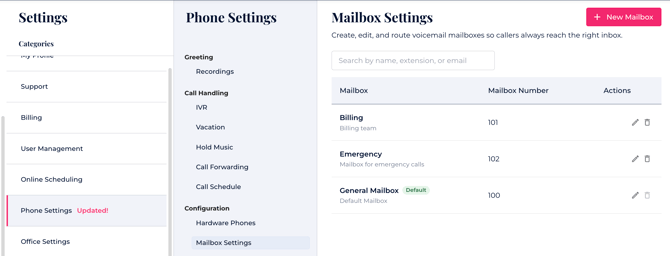
- Open Settings
- Select Phone Settings
- Click Mailbox Settings
From here, you can:
- Create mailboxes
- Edit existing mailboxes
- Delete mailboxes
- Manage mailbox members
Creating a New Mailbox
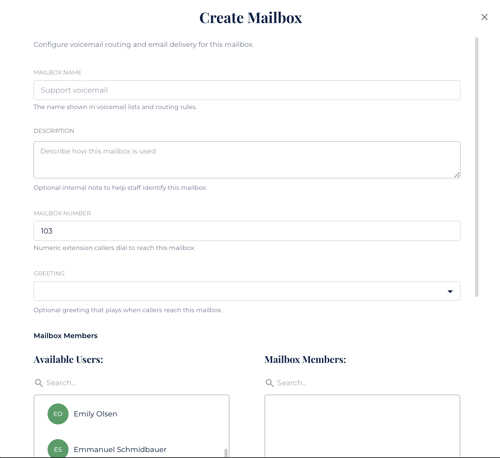
To create a mailbox:
- Click + New Mailbox
- Enter a Mailbox Name
- (Optional) Add a description
- Assign a Mailbox Number
- Select a greeting if desired
- Add mailbox members
- Click Save
Mailbox Settings Explained
Mailbox Name
The display name used throughout the system.
Examples:
- Billing
- Hygiene
- Emergency
- Front Desk
Description
Optional internal notes to help staff identify the mailbox purpose.
Example:
Billing team voicemail inbox
Mailbox Number
The extension callers can dial to reach the mailbox.
Example:
- 101
- 102
- 103
Greeting
Optional voicemail greeting that plays when callers reach the mailbox.
Examples:
- Billing voicemail greeting
- After-hours greeting
- Hygiene department greeting
Mailbox Members
Mailbox members are users who can access and manage voicemails for that mailbox.
To assign users:
- Select users from the Available Users list
- Move them into the Mailbox Members section
- Save changes
Viewing Voicemails by Mailbox
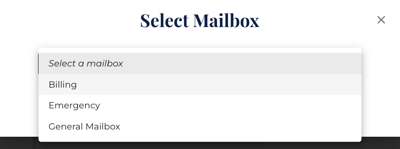
Voicemails can be filtered by mailbox inside Calls & VM.
To filter voicemails:
- Open Calls & VM
- Select the mailbox dropdown
- Choose the mailbox you want to view
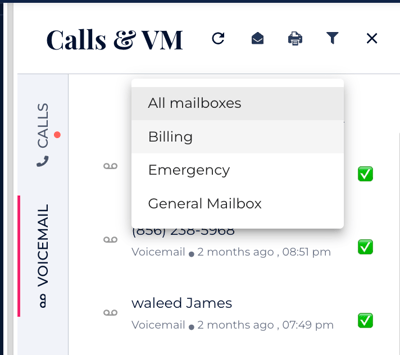
This allows departments to manage their own voicemail inboxes independently.
Assigning Mailboxes to Desk Phones
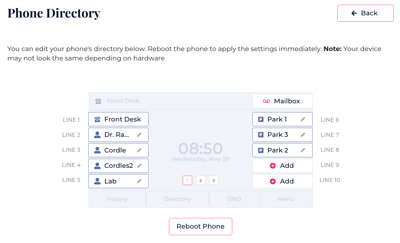
Supported hardware phones can assign mailboxes directly to line keys.
To configure:
- Open Settings → Phone Settings → Hardware Phones
- Select the phone
- Assign a mailbox to an available line key
- Save changes
- Reboot the phone to apply updates
Best Practices
We recommend creating separate mailboxes for:
- Front Desk
- Billing
- Hygiene
- Insurance
- Emergency / After-Hour
This helps keep voicemail workflows organized and allows departments to manage their own messages more efficiently.